

This article discusses scams that impersonate DocuSign, Google, Google Workspace, Microsoft, Meta, Facebook, Calendly, PayPal, and Geek Squad. None of these companies or their services are involved in the scam. All brand names are trademarks of their respective owners.
A notification arrives from a service you already use. The sender address is real, the branding matches a company you recognize, and nothing about the message is unusual enough to trip your email filter. That’s because the message actually did come from that platform’s own servers. Scammers have moved into the tools you already trust, which means their phishing passes every check on the way in. Here’s how four of these campaigns actually work, and what gives each one away.
Why the checks don’t catch it
TrendLife researchers have been tracking a cluster of campaigns that all share the same trick. Every one starts the same way: a real account, on a real platform, sends a real message. SPF, DKIM, and DMARC, the checks your email provider runs to catch forged senders, all pass, because nothing about the sender is forged. The deception lives in content the platform never reviews, a display name, a renamed account, a conversation that unfolds before the actual link ever shows up. And the part that costs you money almost always happens somewhere the platform doesn’t touch at all, a phone call, a signature, or a page one click removed.
DocuSign: a real invoice, signed, then a push to pay
DocuSign lets any account apply its own templates, branding, and even a custom sender domain, so the invoice in your inbox can carry a company’s logo and a believable “from” address without anyone forging anything. One example TrendLife found arrived as a PayPal invoice for a $650 cryptocurrency purchase, complete with a phone number to dispute it and an “Account Activation” button underneath.
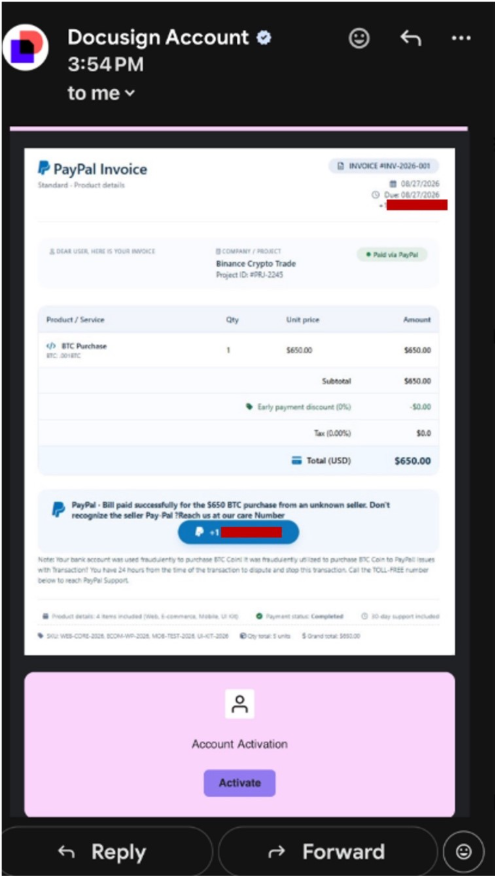
Sign an invoice like this and the scammer treats your signature as proof you agreed to pay, then asks for the money directly. Other DocuSign envelopes skip the signature angle: a “Review Document” link routes through legitimate redirect services to a counterfeit Microsoft or Google Workspace sign-in page, and some of those pages check who’s visiting and show a fake error page to anything that looks like a security scanner. When there’s no link at all, the envelope pushes you toward a phone number or a QR code instead, moving the interaction somewhere even less scrutinized.
Google AppSheet and Meta Business Manager: when the “from” name is just a text field
Two of these campaigns share the exact same trick, just dressed up as two different platforms: the sender identity is a text field the attacker controls, and because the mail genuinely ships from that platform’s own servers, nothing about the “who” is forged.
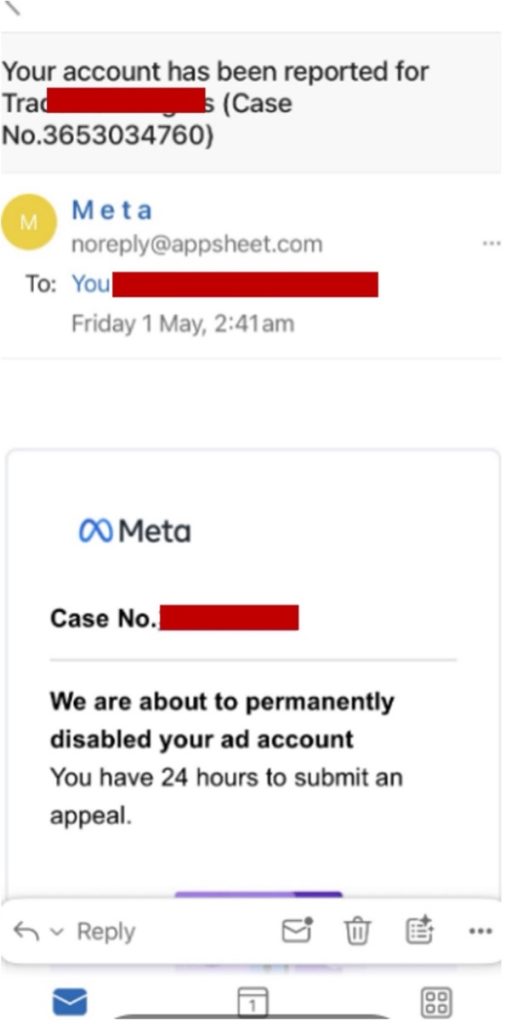
AppSheet is Google’s no-code automation tool, and anyone with a free account can build a bot that emails arbitrary recipients, no code required. The bot’s display name and body text are entirely up to whoever built it. One version is signed “Meta,” sent from noreply@appsheet.com, warning that an ad account will be “permanently disabled” over a trademark claim unless the recipient appeals within 24 hours. That appeal link typically leads to a fake login page built to harvest whatever credentials you enter. The email is genuinely from Google. The company it claims to represent had nothing to do with it.
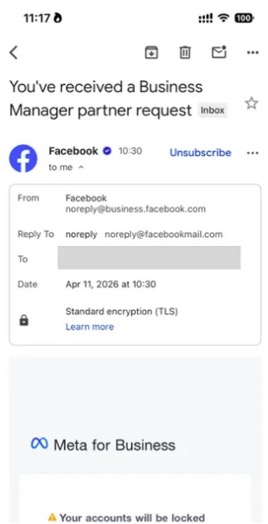
Meta Business Manager runs the same trick through a different feature. Its partner request feature lets any account invite another to share advertising assets, and it’s open to the public by design. An attacker renames their own Business Manager account to something alarming, “Copyright violation, act now” or “Your page will be suspended,” then sends a partner request. Facebook’s own notification system puts that name directly into a genuine email, the kind you’d normally see for a real business partnership, usually with a 24-hour lockout threat and a link, sometimes a shortened m.me address, that leads to a fake Meta login page built to harvest whatever you type into it.
Calendly: a scheduling invite that ends in an invisible login page
Calendly needs only a free account to send scheduling invitations to anyone, and because it’s a normal business tool, those invitations don’t raise the suspicion a cold email would. In one documented pattern, a Calendly account poses as a recruiter at a recognizable brand, built with details scraped from a real LinkedIn profile, and deliberately holds the actual scheduling link back until the recipient replies, so a real-feeling conversation happens before anything resembling a phishing link appears. Other samples skip the recruiter angle entirely. One version was a meeting invite citing “PayPal Admin” and asking the recipient to confirm their trust in the sender before the meeting would proceed.
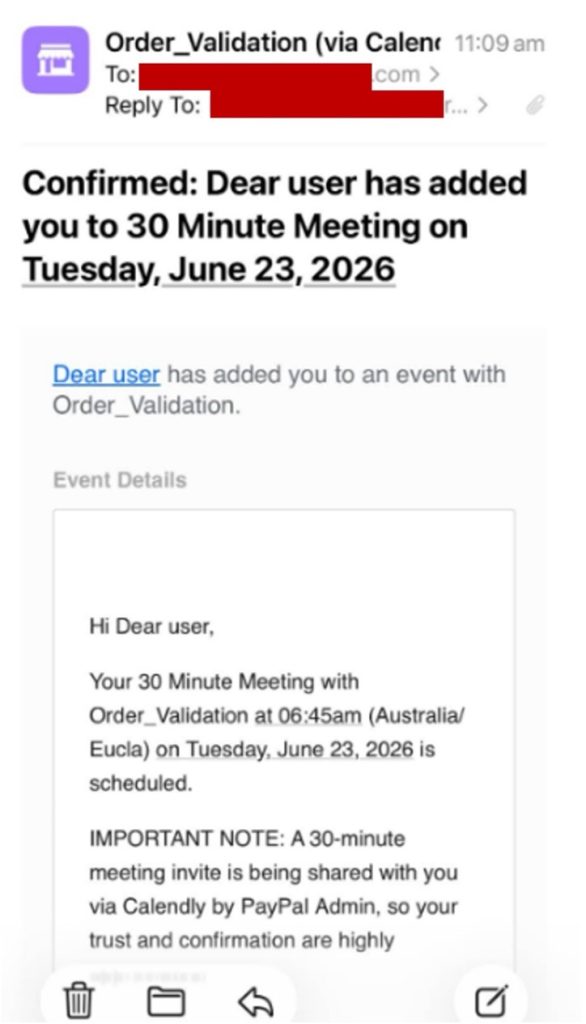
Either way, clicking through leads to a scheduling page that looks legitimate, then quietly redirects to a fake Google or Facebook login. These pages work as an invisible middleman: they pass your password to the real site as you type it, letting you log in normally, while capturing your session cookie, the small file your browser uses to prove you’re already logged in. That’s enough to get into your account without ever needing your one-time 2FA code.
Google Calendar: an invoice that adds itself, with a phone number as the only way out
Any Google account can send a calendar invitation to any address, and by default, Google Calendar adds it to your calendar automatically, no click required. In one case, a “Payment Confirmation” notice for a Geek Squad subscription renewal charged just over $450 within a 24-hour window, with a phone number as the only way to dispute it.
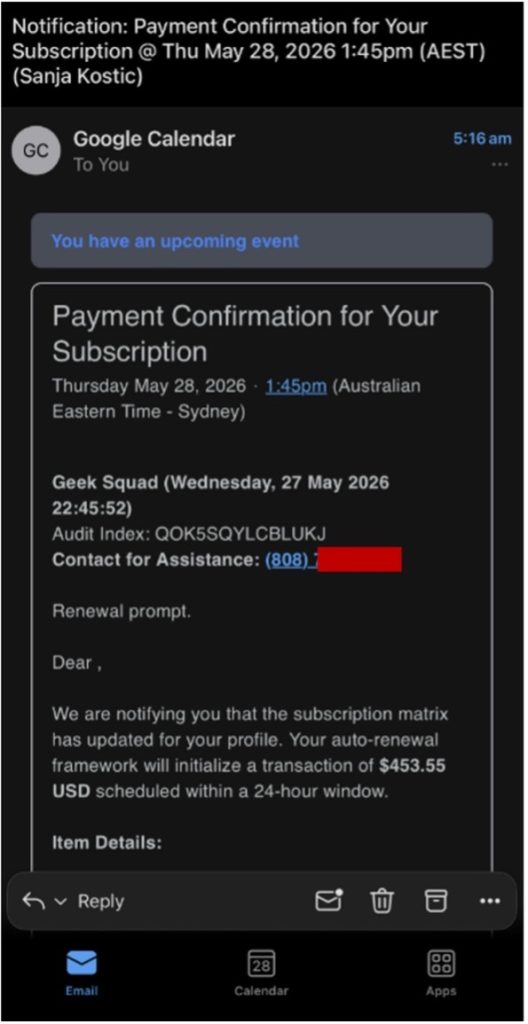
That’s deliberate. There’s no link to scan and no domain to block, so the message sails past filters built to catch exactly that. Call the number and you reach someone posing as support, who asks you to install remote access software to “process the cancellation.” From there, they work through your banking apps directly, moving money while you watch.
Red flags
You’ve got this. Here’s what to watch for.
- Unexpected signature request: A document you were never told about, however well branded, is worth a pause before you sign.
- Off-platform login link: A real notification from DocuSign, Google, or Meta never sends you to a third-party page to sign in.
- Phone number as the only next step: Automated billing notices don’t ask you to call a support line printed in the message.
- QR code in a business email: Sending you to your phone camera skips the checks your inbox would have run.
- Countdown or lockout threat: 24-hour deadlines and suspension warnings exist to stop you from checking.
- Sender name that reads like a warning: A business account named “Your page will be suspended” is a message, not a company.
- Calendar events you never accepted: Invoices and renewal alerts that appear on their own were sent by a stranger.
How to stay safe
- Verify with the sender through a channel you already use. Call or message the company using contact details you had before this message arrived.
- Go to the source yourself. Open the official app or type the address in your browser, then check your account, documents, or billing there.
- Never call a number or scan a code from a notification. Look up support details on the company’s own website instead.
- Turn off automatic calendar invitations. In Google Calendar settings, set event additions to “Only if the sender is known.”
- Refuse any remote access request. No support agent needs control of your device to cancel a subscription or issue a refund.
- Report what you see. Use reportfraud.ftc.gov in the US, Scamwatch in Australia, or your national cybercrime unit. Trend Micro ScamCheck can also check a suspicious message for you.
The bottom line
These campaigns are convincing because the delivery really is legitimate. The email is authentic, the sender is verified, and the interface is one you open every day, so even careful and tech-savvy people encounter them. What the scammers still need is a decision made in a hurry. You now know where the deception lives, in the content rather than the sender, and you know the signs that give it away. Take your time to verify, and trust your instincts.
0 Comments
Other Topics


