About the Beta Program
- Use Kaleida daily during the program period.
- Use it with your family and experience how Kaleida benefit them.
- Survey and interview invitations will be emailed during the program period.
Activate Your License
Use the Activation Code sent to you by email to activate your license. You must complete this step first.
Tap "Start setup" on the Activation Portal
Open the Activation Portal from this page. When you see "Activate your service and get started", tap the red "Start setup" button in the center.
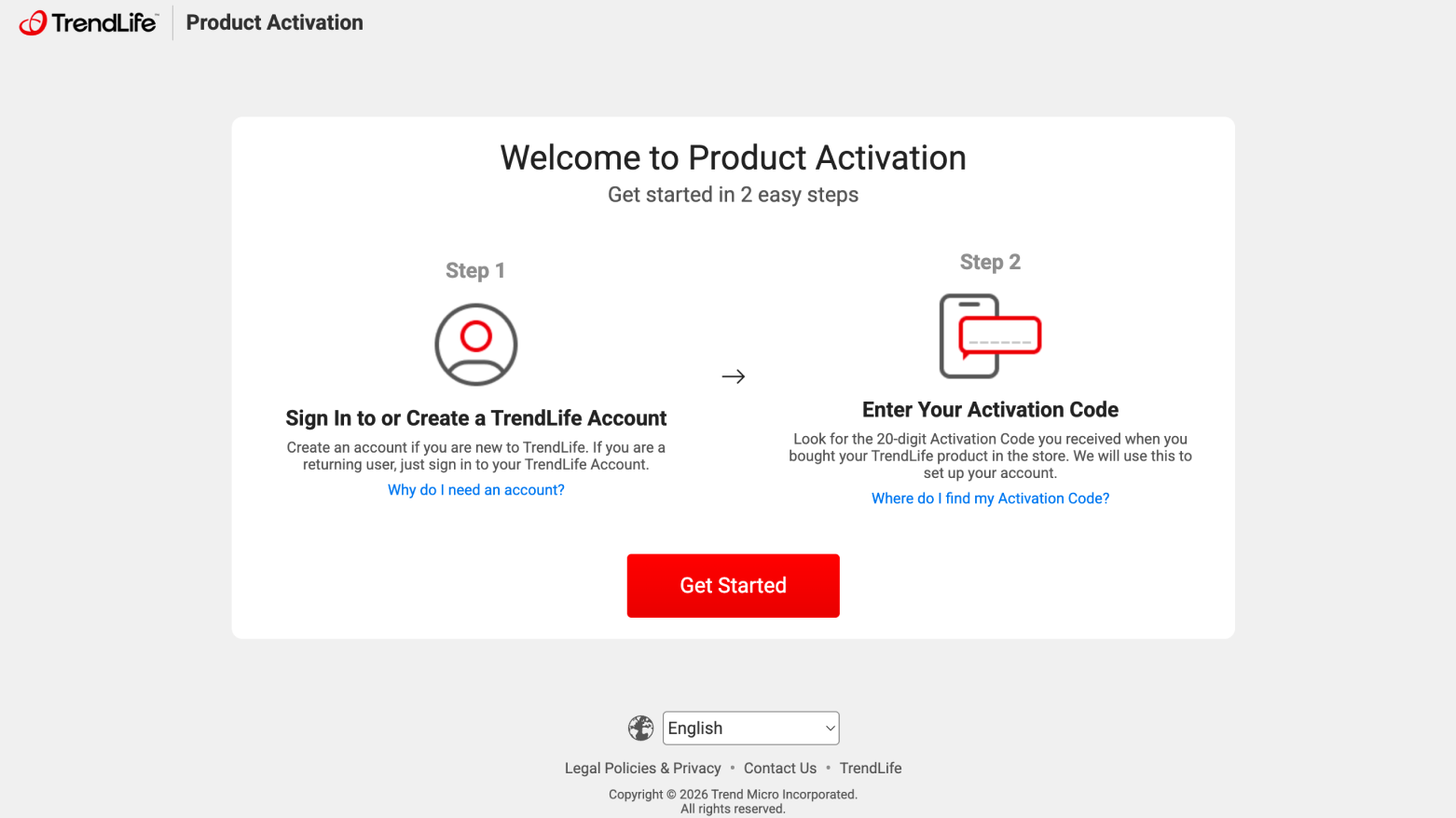
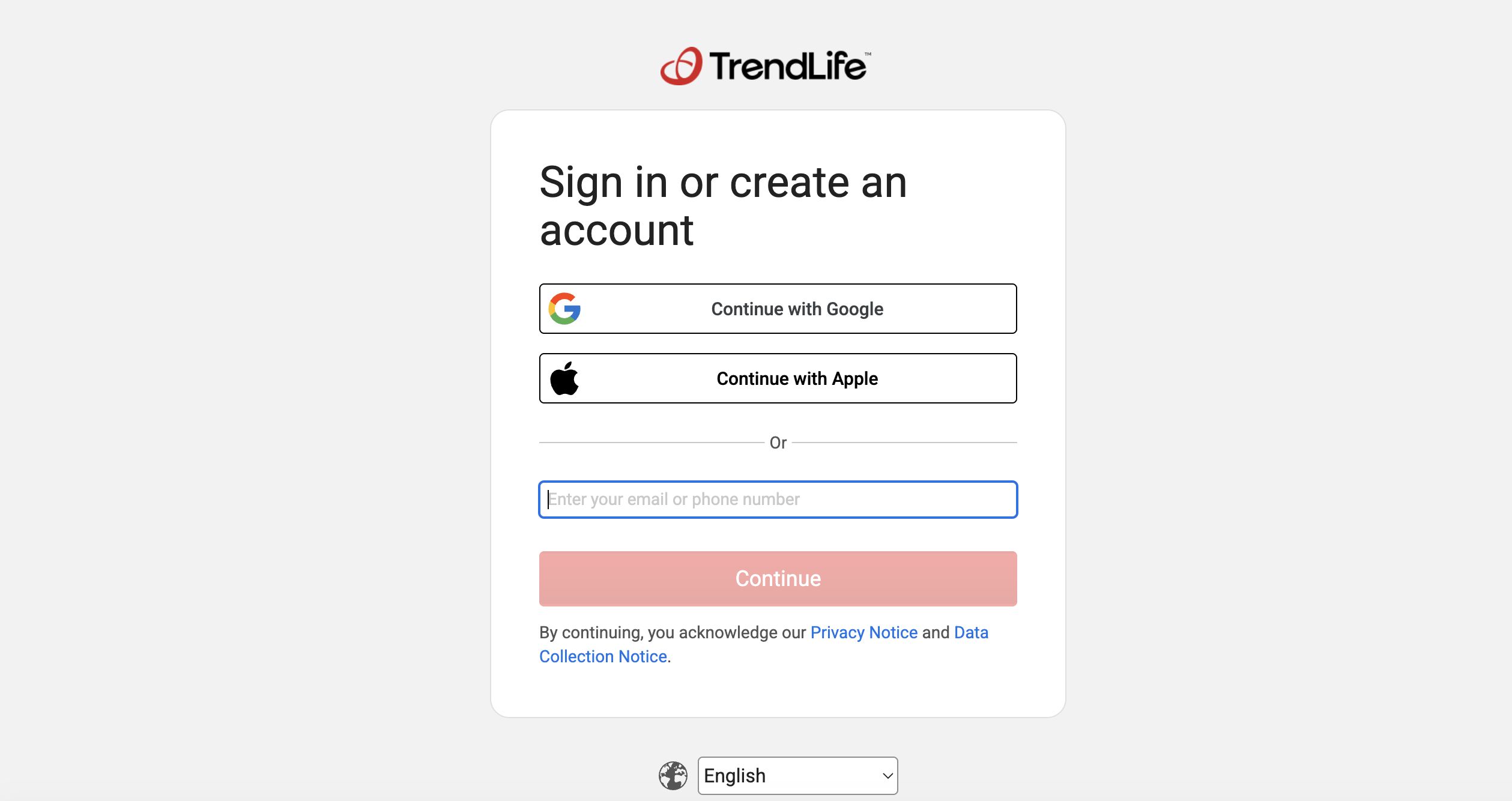
Sign in with your TrendLife (Trend Micro) account
On the login screen, sign in to your TrendLife (Trend Micro) account with your email address. Third-party accounts (Google / Apple) may not work reliably. If you don't have an account, you can create one here.
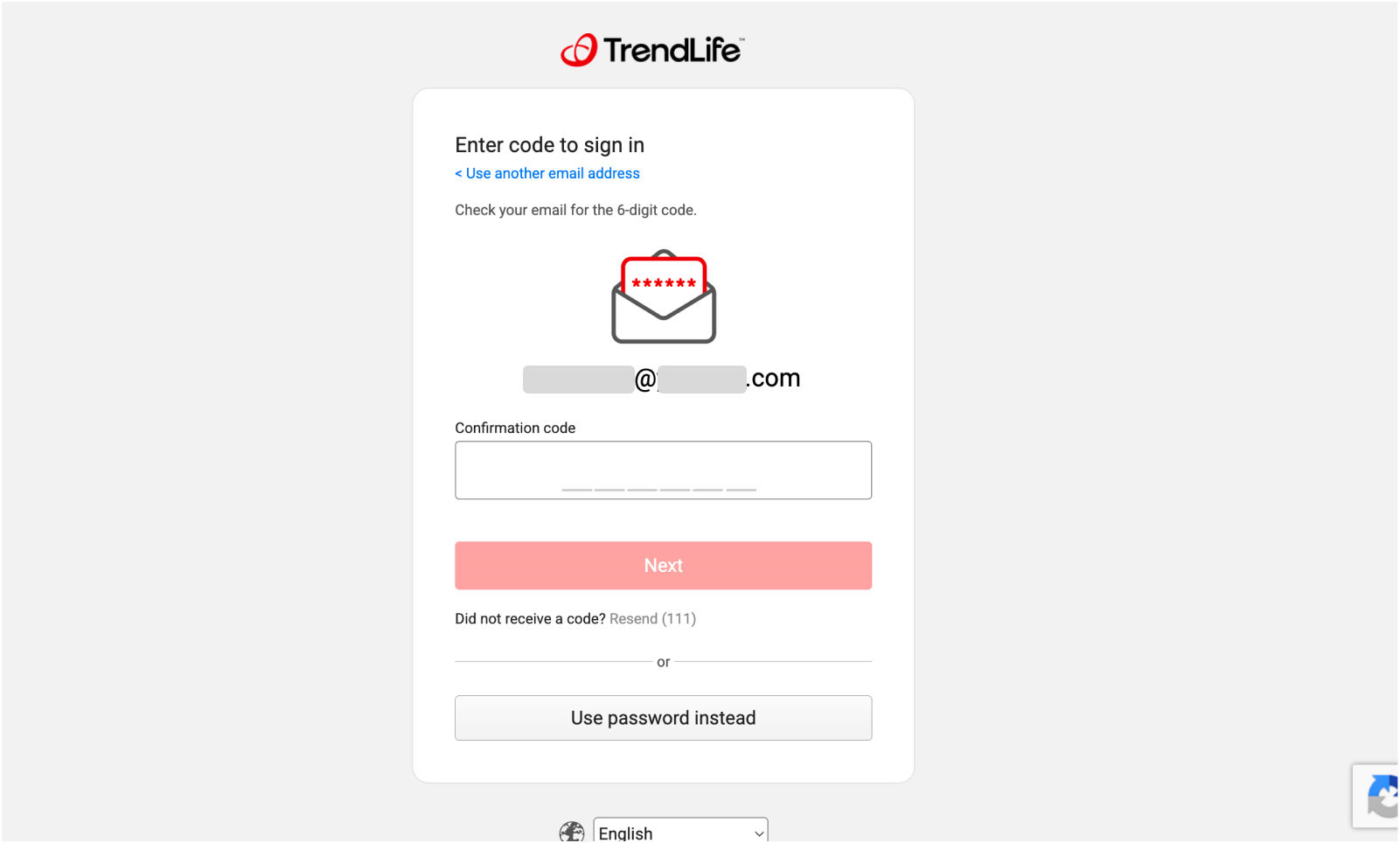
Enter the verification code (6 digits)
If you signed in with an email address, a 6-digit verification code will be sent to your registered email. Paste it into the field and tap "Next".
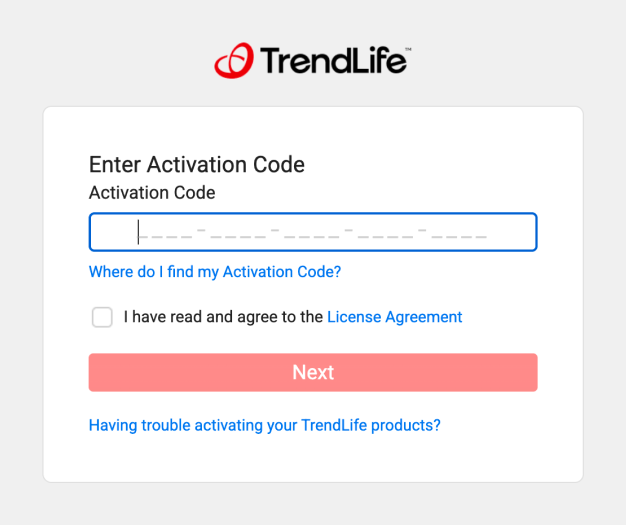
Enter your Activation Code
On the Activation Code screen, enter the
XXXX-XXXX-XXXX-XXXX-XXXX (20 characters in 5 blocks of 4) code from your invitation email.
Check the box to agree to the license terms, then tap "Next".
You can find your Activation Code in the email we sent you.
After activation completes, you will be redirected to another portal page. Close that page and return to this page - Beta Portal (the URL in the invitation mail).
Once you are back on the Beta Portal, proceed to Step 2.
Download the App
To download the app, please tap the download link based on your mobile OS. First select your OS from the tabs below before continuing.
Be sure to activate your license in Step 1 first. If you download the app and sign in before activating a license, you'll see the in-app purchase screen — you won't be able to start using the beta.
Download TestFlight from the App Store
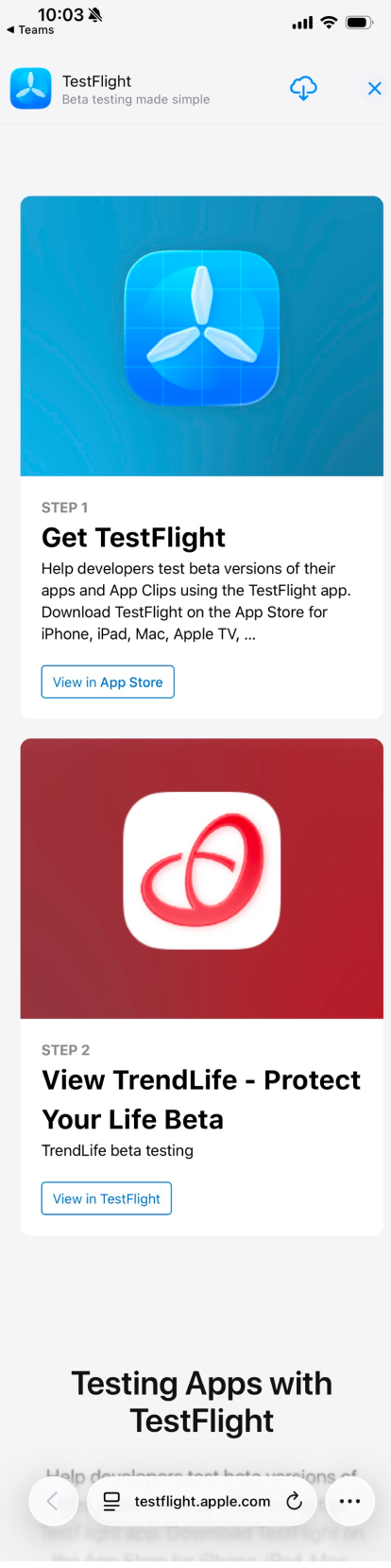
Tapping the iOS download link in the Beta Portal opens the testflight.apple.com page. Tap "View in App Store" to download TestFlight.
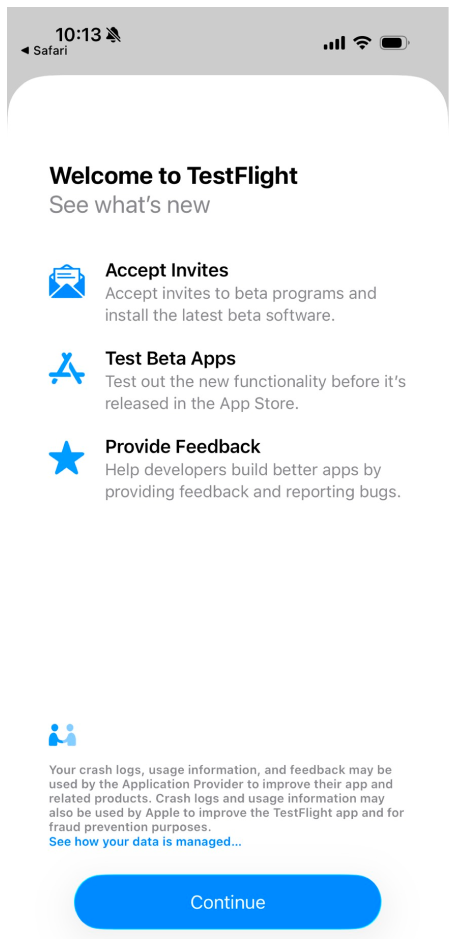
Tap "Continue"
The first time you open TestFlight, the "Welcome to TestFlight" screen appears. Review the information and tap "Continue".
Tap "Agree"
When the TestFlight terms appear, review them and tap "Agree".
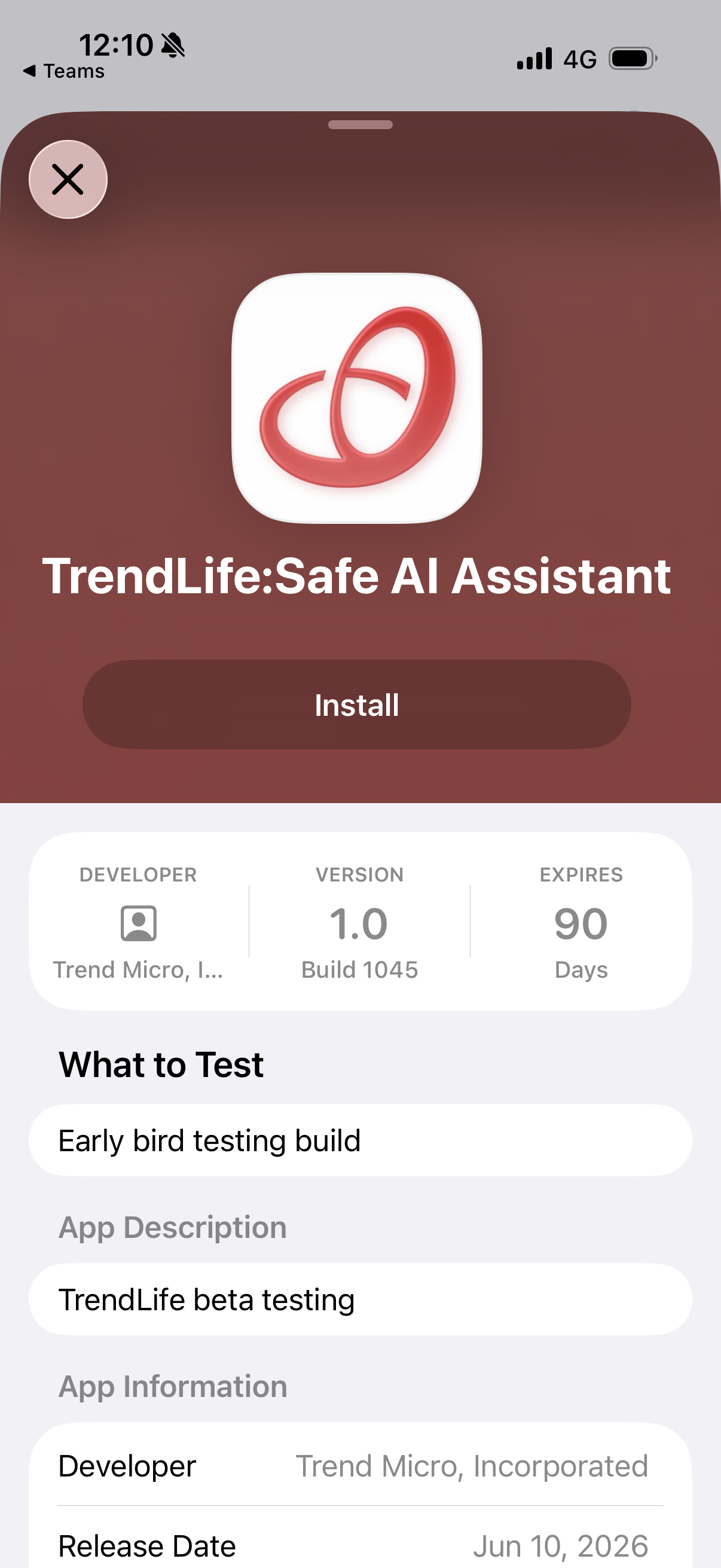
Install TrendLife Beta
On the TrendLife Beta screen in TestFlight, tap "Install".
Sign in with the account from Step 1
After installing, launch the app and sign in with the same account you used to activate your license in Step 1.
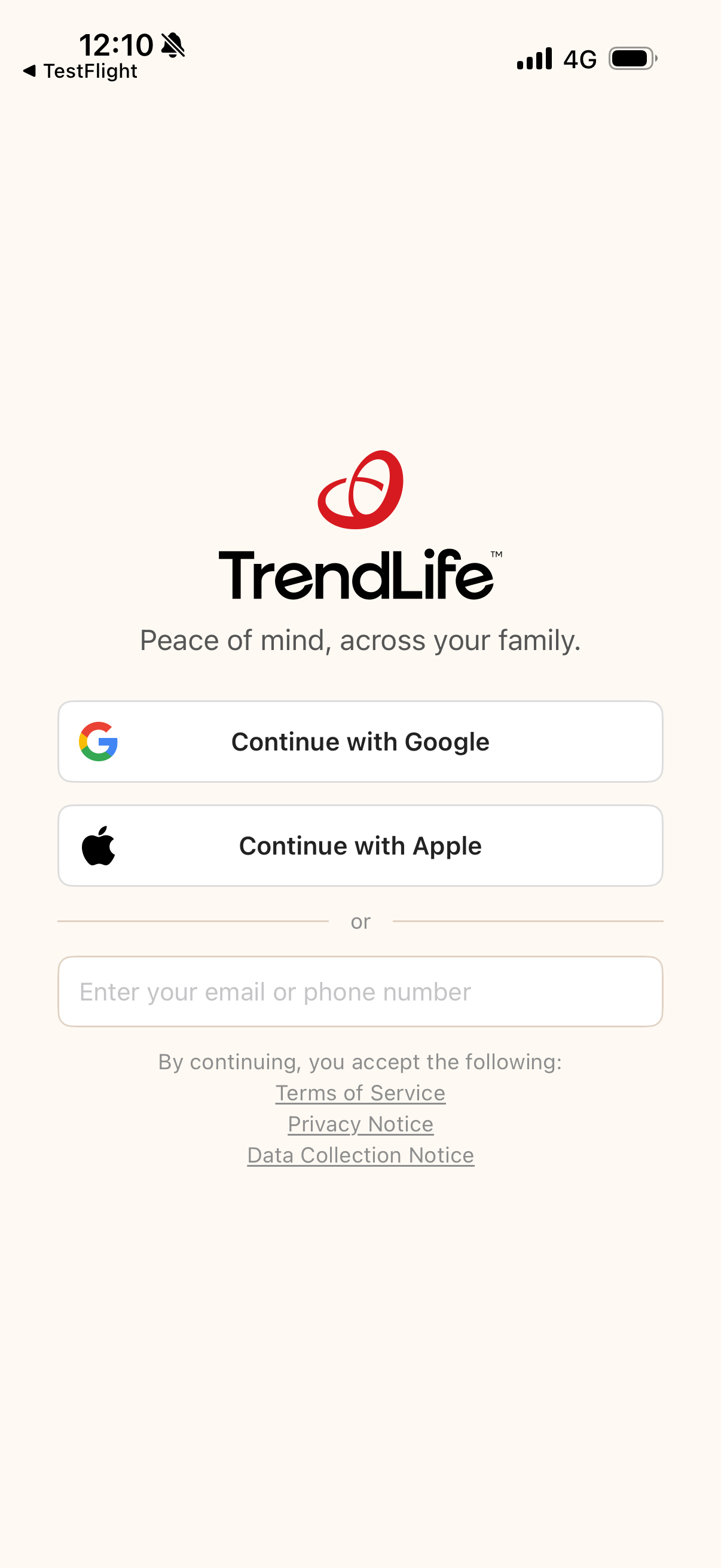
Be sure to sign in with the same account used to activate your license in Step 1. A different account will prevent access to the early access build.
This early access build is installed by downloading the APK file directly (not via Google Play). Due to Android security features, a few confirmation screens may appear the first time.
Download the APK file
Opening the Beta Portal download link starts downloading
trend-life-staging-x.x.xxxx.apk.
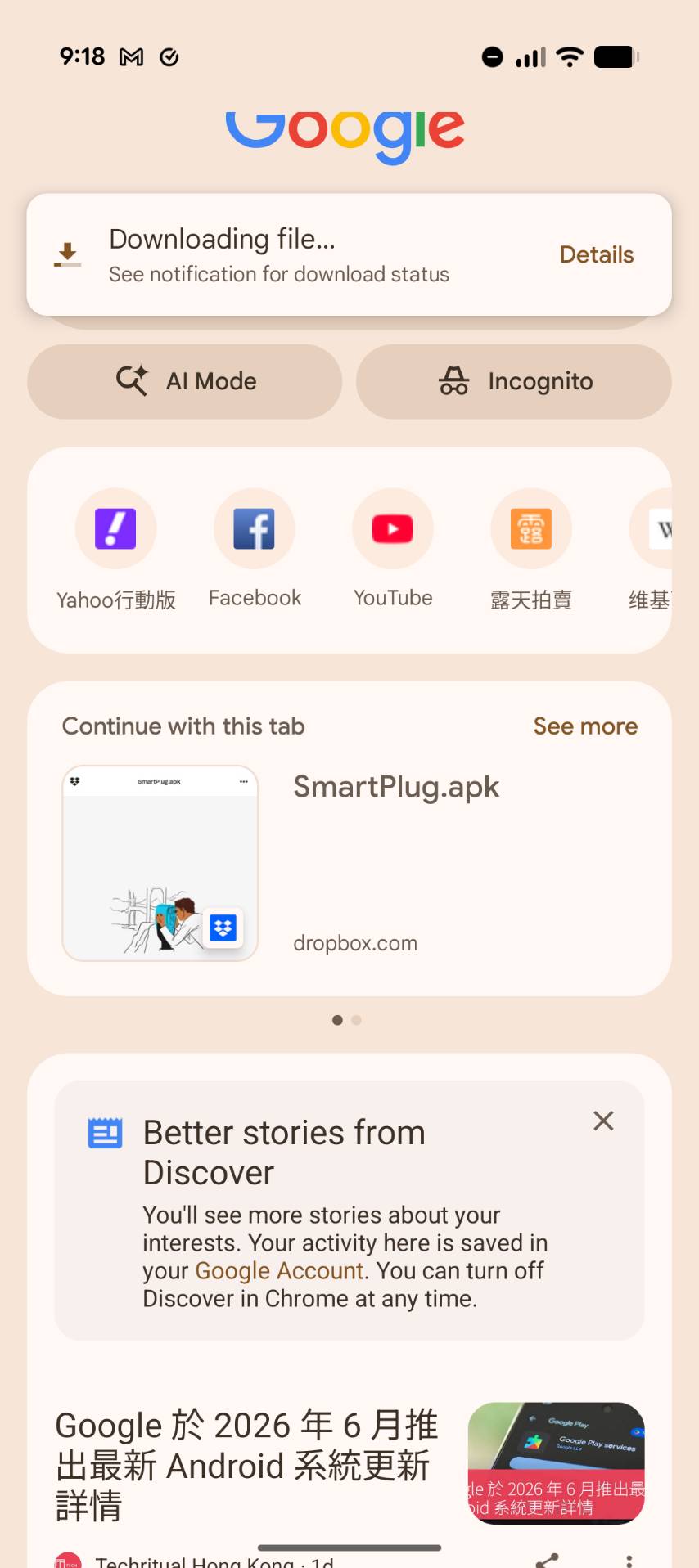
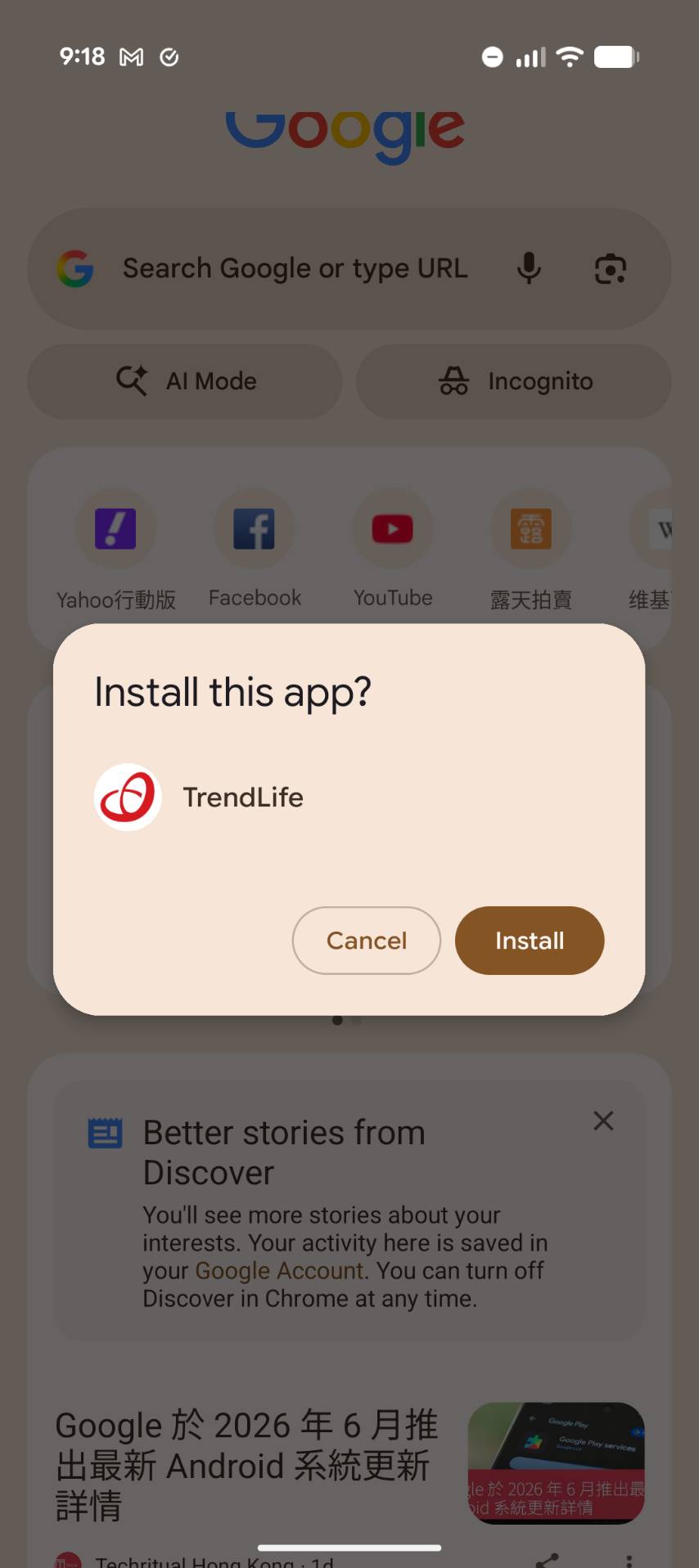
Follow the prompts to install
When the download finishes, tap "Open" in the notification and follow the prompts to install. When "Do you want to install this app?" appears, tap "Install".
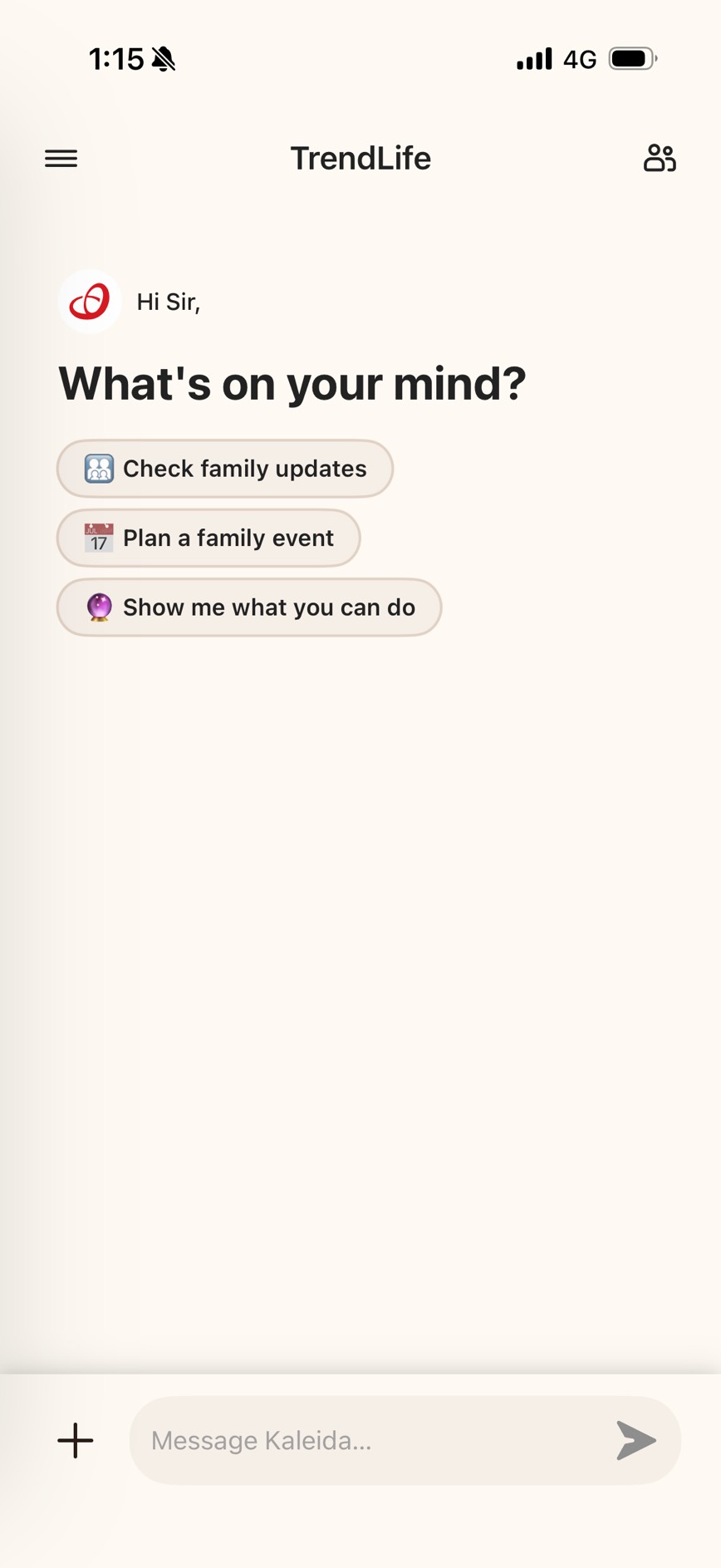
Sign in with the account from Step 1
After installing, launch the app and sign in with the same account you used to activate your license in Step 1.
Be sure to sign in with the same account used to activate your license in Step 1. A different account will prevent access to the early access build.
Invite Your Family
Create your profile and invite your family (up to 3 members) to Kaleida. They can start using the app by following the same steps.
Create a profile
Launch the app and set up a profile with your name and date of birth. Then continue to entering your family members' profiles (up to 3 members).
Send the download link
Copy the download link based on your family members' mobile OS and share the link with them.
Family members sign in
Family members install the app from your link and sign in with the same email address that was entered when they were invited.
Due to the Beta program, invite links generated in the app are currently not functional. Always copy and send the download link from Step 2.
Family members must sign in with the exact email address provided at invitation time. A different address will not work.
Check Updates from Kaleida
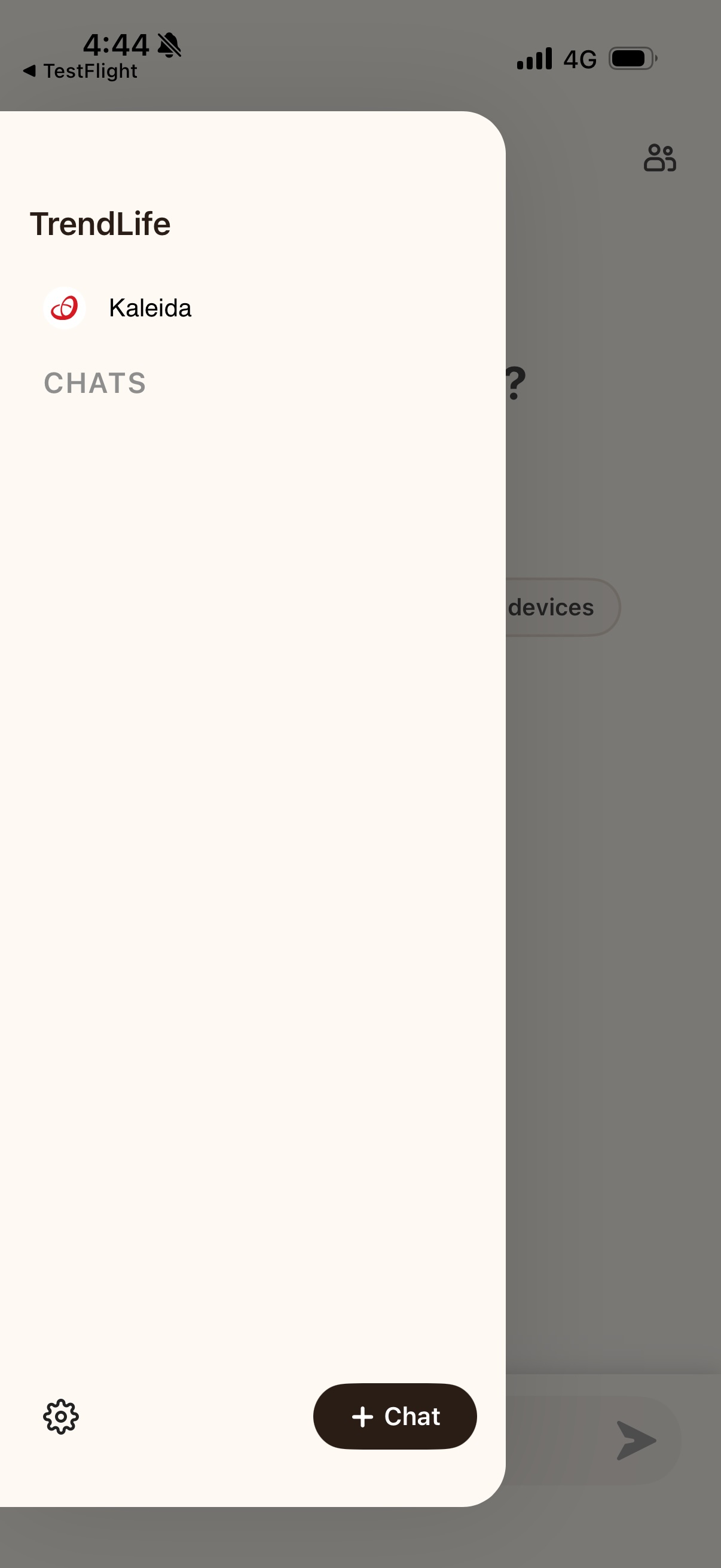
Kaleida proactively shares important updates with users through the Pinned Chat in the side panel. System notifications are not connected during the beta period, so please open the side panel from time to time so you do not miss anything.
Contact Beta Support
You can share bug reports and feedback in two ways.
- Tell Kaleida directly if you disagree, feel unsatisfied, or have any comments. Reporting issues right away helps us improve! Just start your prompt with: "I want to report an issue…"
- To contact us by email, write to trendlife-kaleida@trendmicro.com. Replies are sent weekdays 9:00–17:30 only. Closed on weekends and public holidays. (Submissions are accepted 24 hours a day.)